

1
Open Home
- Open OpenEmail in your Shopify admin. It lands on Home.
- The banner at the top reads Sending is on or Sending is held. A held banner lists each blocker, who acts on it (you, your agent or OpenEmail), and a button or a prompt to copy.
- Needs you counts the approval requests waiting for you and shows the newest three. Select Review to open one. Requests expire 24 hours after your agent asks.
- At a glance shows Contacts, Subscribed and Do-not-email entries. A sudden jump in do-not-email entries is worth a question to your agent.
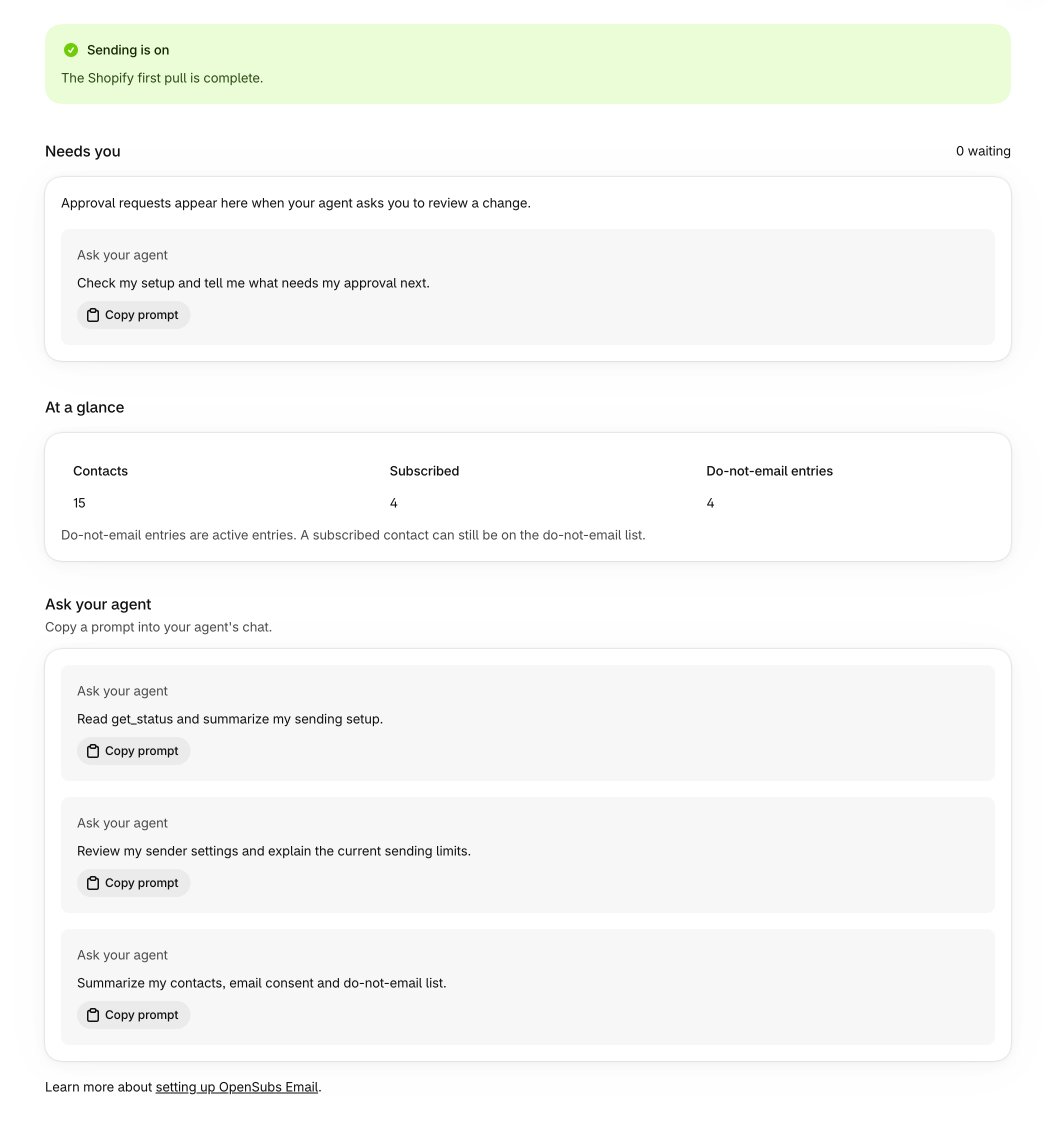
Checkpoint: Sending is on, and nothing under Needs you that you haven’t decided.
2
Ask your agent
- Paste this into your agent’s chat:
get_statusreturns the same state Home shows, in more detail:holdsandpauses, the domain check’s findings, your sender’s limits and how much of them your store used, the Shopify sync streams, and every campaign paused automatically.- Every tool result your agent gets also carries a status line, so it often mentions a problem before you ask.
Checkpoint: your agent reports no holds, no pauses, and room left under both limits.
3
Act on the warnings that matter
- Most days there are none. When the status line or Home says one of these, here is what it means:
- Home can also say Shopify sync failed or that a Shopify webhook has a processing error. Open Settings > Shopify sync to see which stream, and ask your agent to look.
- The store owner’s inbox gets a notice email for each new hold, sender pause and automatic campaign pause. A notice is a reason to open Home, not a second thing to fix.
Checkpoint: every warning has an owner: fixed, waiting on its own, or handed to your agent.