

What starts a run
- An abandoned checkout: a shopper gave an email address and placed no order within 10 minutes of their last change. Only checkouts created after install count.
- Only subscribed contacts: a run starts if the shopper is subscribed and not on the do-not-email list at that moment. A ticked marketing box at checkout counts as subscribing.
- One run per contact: a newer checkout takes the run over without starting the series again, and the next email shows the newer checkout.
- An order ends it: any order by the contact ends their run. A message more than 24 hours late is skipped rather than sent.
1
Build the flow
- Your agent writes the emails, then saves the flow as a draft: 1 to 5 steps, each an email and the wait before it.
- The first wait is at least 15 minutes after the checkout is abandoned; each later wait is at least 1 hour after the step before. The whole series falls due within 7 days.
- Flow emails can show the checkout: its items, totals and a link back to it. Test each one first, as in Emails and preview.
Ask your agent
Checkpoint: the flow shows on Flows as Draft only.
2
Turn off the other abandoned checkout emails
- In the Shopify admin, turn off Shopify’s own abandoned checkout email: it’s in Messaging > Automations, and on older stores also in Settings > Checkout.
- Coming from Klaviyo? Set its abandoned checkout flow to draft in Klaviyo. See Move from Klaviyo.
Checkpoint: OpenEmail’s flow is the only abandoned checkout email left on.
3
Approve it
- Your agent requests approval. That freezes the draft as a flow version, with each step’s newest email version, and gives you a link.
- The approval page shows each step’s wait and email, the abandoned checkouts of the past 7 days whose contacts are subscribed, and any warnings. Approve puts the version live. See Approvals.
Checkpoint: Flows shows the flow as Live, with its live version number.
4
Watch it
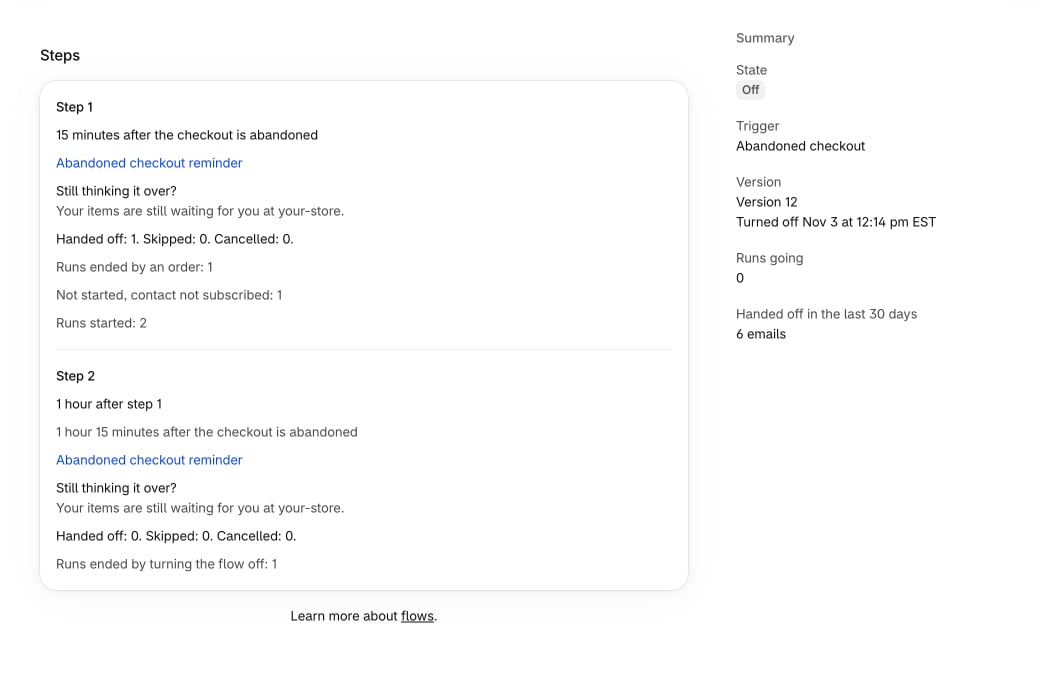
- Open the flow from Flows. Steps lists each email in order with its wait in words, its subject and preview text, and its figures: emails handed off, skipped and cancelled, and runs started, not started or ended there, by reason.
- Summary shows the trigger, the live version and since when, Runs going, and emails handed off in the last 30 days.
- A step marked Stopped had its email refused by your sender. It sends nothing while the other steps carry on, and you get an email about it. Ask your agent to fix the email and request approval again; the next approved version resumes the step.
Ask your agent
Checkpoint: runs start as checkouts are abandoned, and no step is stopped.
5
Change it
- Every change goes into a new draft, and the live version keeps running meanwhile. Waiting for approval on the flow’s page links to the request.
- When the new version goes live, every run going moves to it at its next step, matched by position. Times already set stay; later waits come from the new version. Keep steps in the same order when they should line up.
Ask your agent
Checkpoint: after you approve, the live version number goes up by one.
6
Turn it off
- Turn off flow is in the flow page’s title bar while it’s live. Confirm, and it acts at once, with no approval.
- Every run going ends and its queued emails are cancelled. An email already being handed to your sender may still go out. A request waiting for a new version ends too.
- To turn it back on, ask your agent for a new approval. Runs that ended don’t start again; only checkouts abandoned after it’s live again start runs.
Ask your agent
Checkpoint: Flows shows the flow as Off, and Activity records who turned it off.
Next, see everything that keeps sending while you’re away: What runs without you.